
Your Chart Arena wallets
When you sign in, Privy creates a wallet for you. Solo uses your main wallet, and Advanced gets its own wallet. All of the wallets Chart Arena creates for you come from one seed phrase, and each also has its own private key. If you connected your own wallet, such as MetaMask, as your main wallet, you already hold its key.Export your key in Chart Arena
While Chart Arena is working:- Open the Wallet tab and expand PERPL.
- On the account you want, press •••, then EXPORT PRIVATE KEY.
- Privy’s Export wallet window opens. Copy the private key or the seed phrase and keep it somewhere offline.
If you can’t use Chart Arena: Privy Home
If Chart Arena is down, or you can’t sign in to it, use Privy Home.1
Sign in to Privy Home
Go to home.privy.io, press Get started and sign in with the email you use for Chart Arena.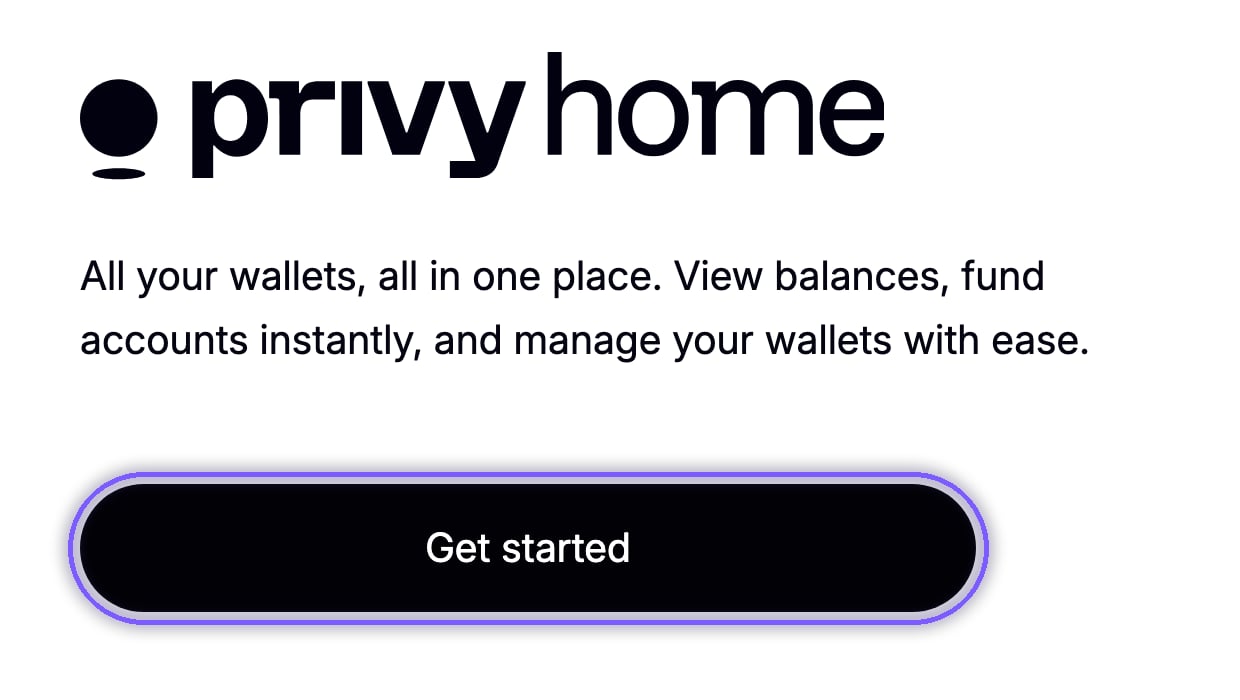
2
Open Chart Arena
Open My apps, choose Chart Arena and press Export keys.
3
Sign in to Chart Arena's recovery page
Privy asks you to sign in again with your Chart Arena login: email, X or your wallet.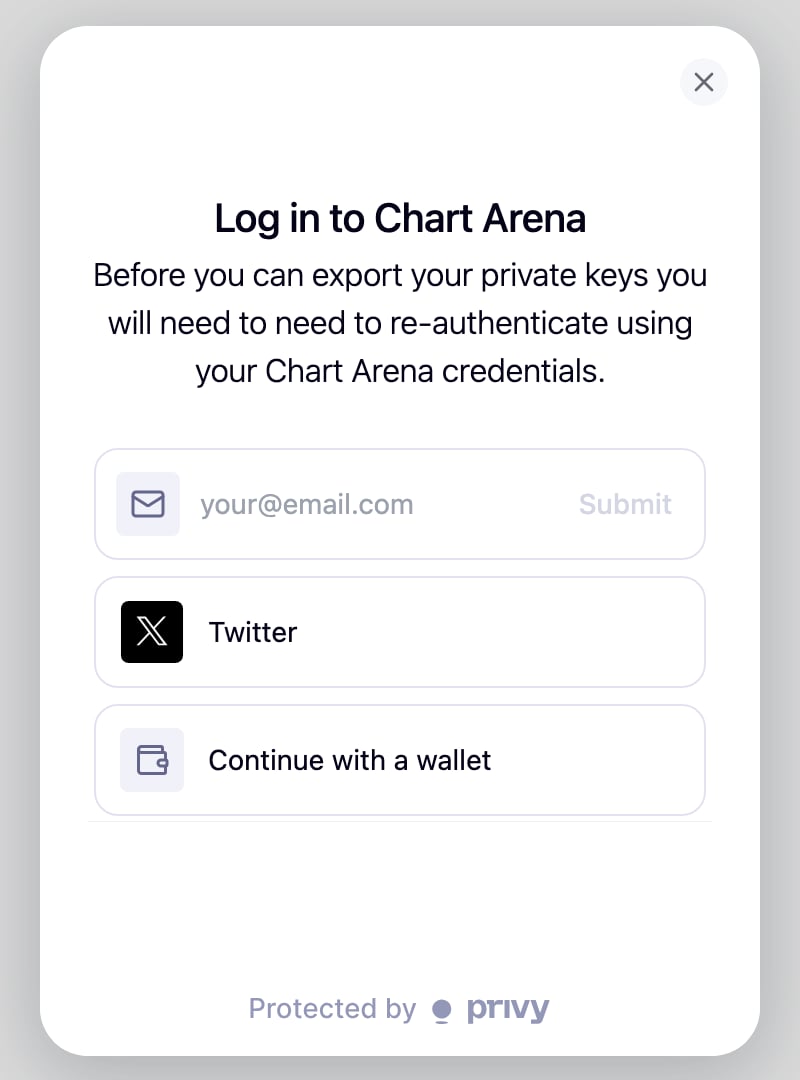
4
Export
Under Your wallets, press Export next to the wallet you need, then copy its private key or seed phrase.
- Privy Home signs you in by email only. If you sign in to Chart Arena another way, go straight to Chart Arena’s recovery page.
- Passkeys don’t work on the recovery page. If you use two-factor security, add an authenticator app while you can still sign in. See Secure your account.
- Privy Home can’t send funds. Import your key into a wallet app, then use Perpl.
Close positions and withdraw on Perpl
Import your private key or seed phrase into a wallet app such as MetaMask or Rabby. If you import the seed phrase, your wallet app may show only your first wallet at first; add accounts to reach the others.1
Connect to Perpl
Go to app.perpl.xyz, press Connect and choose your wallet. Accept Perpl’s Terms of Use and sign its sign-in message.
2
Close your positions
In the Positions tab, press Close on a position, or Close All to close everything. You can cancel orders in Open Orders.
3
Withdraw
Open Deposit, choose Withdraw and send your AUSD back to your wallet. Withdrawing is an on-chain transaction, so keep a little MON for network fees.
If Perpl’s app is down: Rescue Mode
Perpl’s Rescue Mode at recovery.perpl.xyz reads the blockchain directly and only reduces: it can close positions, cancel orders and withdraw. Close Everything! closes all positions, cancels open orders and turns off one-click trading.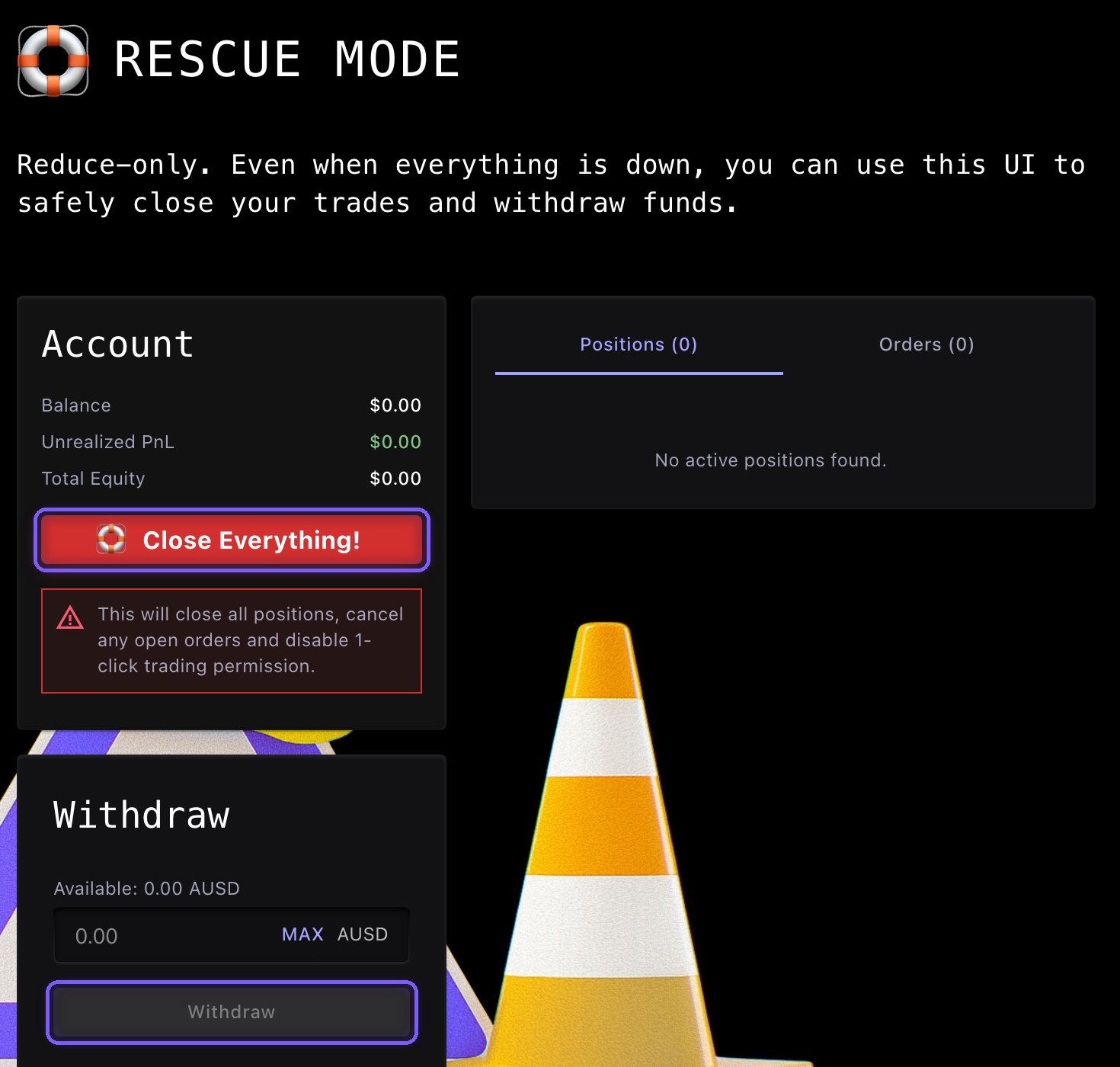
Stop Chart Arena from trading for you
Revoke the trading key
Revoke the trading key
On Perpl, open Tools, then API Keys (app.perpl.xyz/apikeys), and connect your wallet. Find Chart Arena orders, press Revoke key (the trash icon), then Revoke. Revoking doesn’t need gas.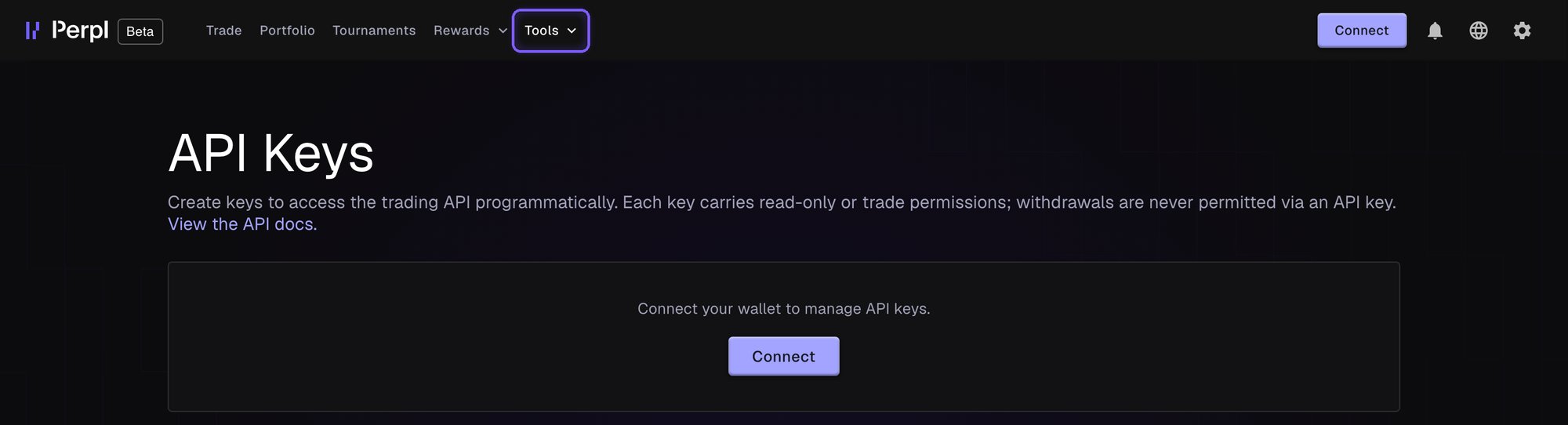
Turn off one-click trading
Turn off one-click trading
One-click trading is Perpl’s name for order forwarding. In Perpl, open Settings, then Transactions, and turn off Enable One Click Trading. This is an on-chain transaction, and it also cancels your take-profit and stop-loss orders.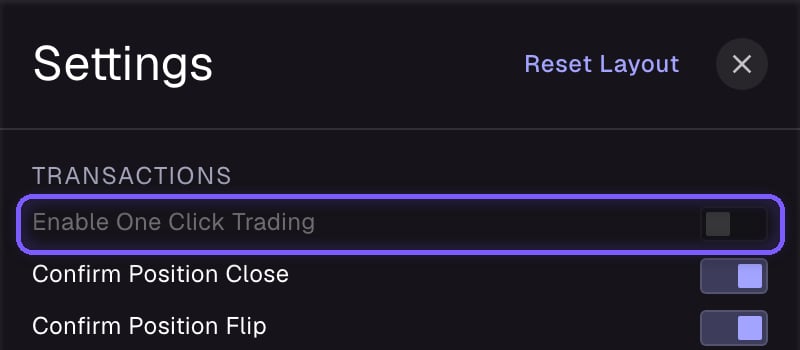
Ask us to delete the key
Ask us to delete the key
Email support@blocklive.io and we will stop using your key and delete it from our live systems. Encrypted backups may remain, so revoke the key on Perpl too.
What keeps working if Chart Arena is down
- Your funds stay in your wallet and your Perpl account.
- Open positions stay open on Perpl until you or Perpl close them.
- Take-profit and stop-loss orders already on Perpl as trigger orders stay with Perpl and work under its rules. Our servers’ backup check doesn’t run while we’re down, and orders aren’t resized if your position changes.
- Protective orders are best-efforts and are not guaranteed stops.